In-App Guide

Delete Your RealtorsIn Account From the App

Follow this guide inside the mobile app to delete your account immediately or schedule deletion after a 7-day grace period.

4 steps below — jump to any section from the sidebar on desktop

Step 1 of 4

Open Account Management

Sign in to the app

Open the RealtorsIn app on your phone and sign in with the account you want to delete.

Open your Profile

Tap the Profile tab in the bottom navigation bar (far right icon).

Go to Account Management

Scroll to the Settings section and tap Account Management. This screen is where you can change your password or start account deletion.
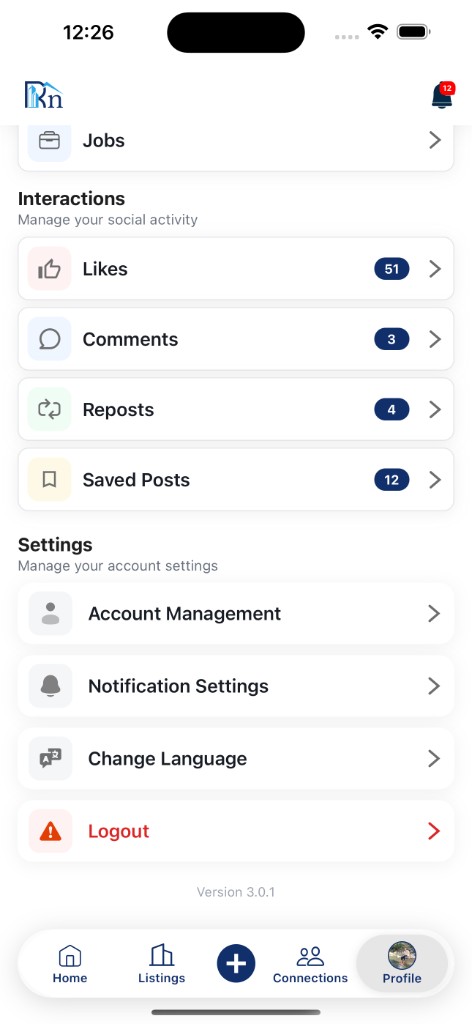
RealtorsIn Profile screen showing Account Management under Settings
Profile → Settings → Account Management

Step 2 of 4

Choose How to Delete Your Account

Read the deletion warning

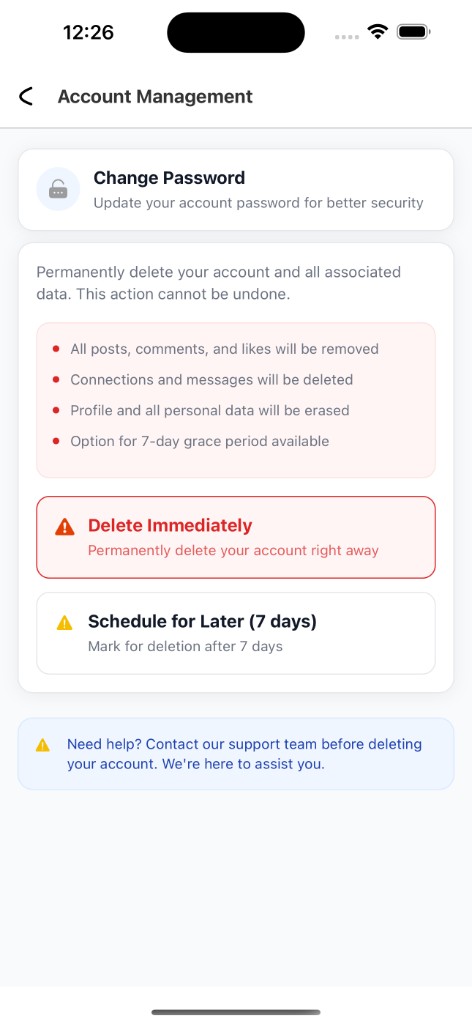
On the Account Management screen, review the warning. Deleting your account permanently removes your posts, comments, likes, connections, messages, profile, and all personal data. This cannot be undone.

Pick one of two options

Delete Immediately
Permanently deletes your account and data right away.
Schedule for Later (7 days)
Marks your account for deletion after a 7-day grace period. Log in again before the period ends to cancel.
Account Management screen with Delete Immediately and Schedule for Later options
Account Management — deletion options

Step 3 of 4

Review the Account Deletion Preview

What the preview shows

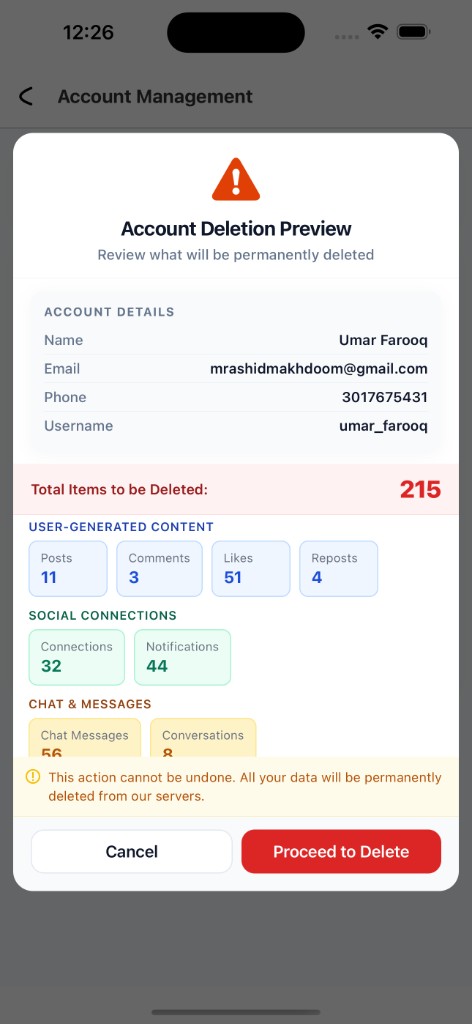
Before anything is removed, RealtorsIn displays an Account Deletion Preview listing exactly what will be deleted.

Review your data summary

Your name, email, phone, and username appear at the top, followed by a total count and a breakdown: user-generated content (posts, comments, likes, reposts), social connections, and chat messages.

Continue or go back

This action cannot be undone. When you have reviewed the summary, tap Proceed to Delete to continue or Cancel to return to Account Management.

Account Deletion Preview showing data that will be permanently removed
Account Deletion Preview — summary of removed data

Step 4 of 4

Confirm Deletion

If you chose Schedule for Later

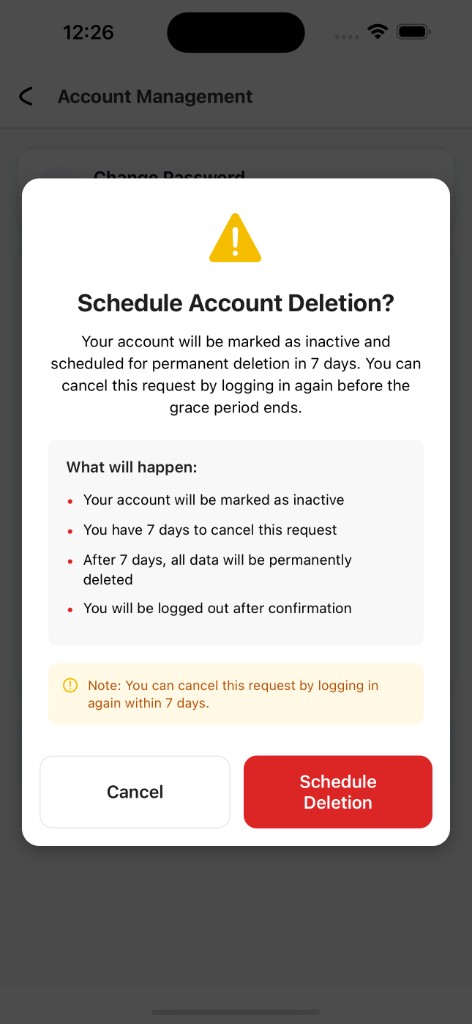
A confirmation modal explains that your account will be marked inactive and scheduled for permanent deletion in 7 days. You can cancel by signing in again before the grace period ends. Tap Schedule Deletion to confirm, or Cancel to go back.

If you chose Delete Immediately

You will see a similar final confirmation screen before your account and data are permanently removed from our servers.

After you confirm

You will be logged out once the request is submitted. Scheduled deletions can still be reversed within 7 days by signing back in.

Schedule Account Deletion confirmation modal with 7-day grace period
Final confirmation — scheduled or immediate deletion
Account Delete Request

Account Delete Request

Follow the in-app steps above to delete your account yourself, or submit this request form if you need help removing your account, posts, or listings.

Your account details

At least one of user name, phone, or email is required

What would you like to delete?

Select one option

Deletion request type

By submitting this form, you confirm that the information provided is accurate. We may contact you to verify your identity before processing your request.

WhatsApp
Contact Us